Operators
Running your listing
Add a home, keep your beds honest, answer the people who ring, and decide which referral requests are worth an offer.
Lesson 1 · about 4 min
Your portal
Find your way around the six screens in your portal.
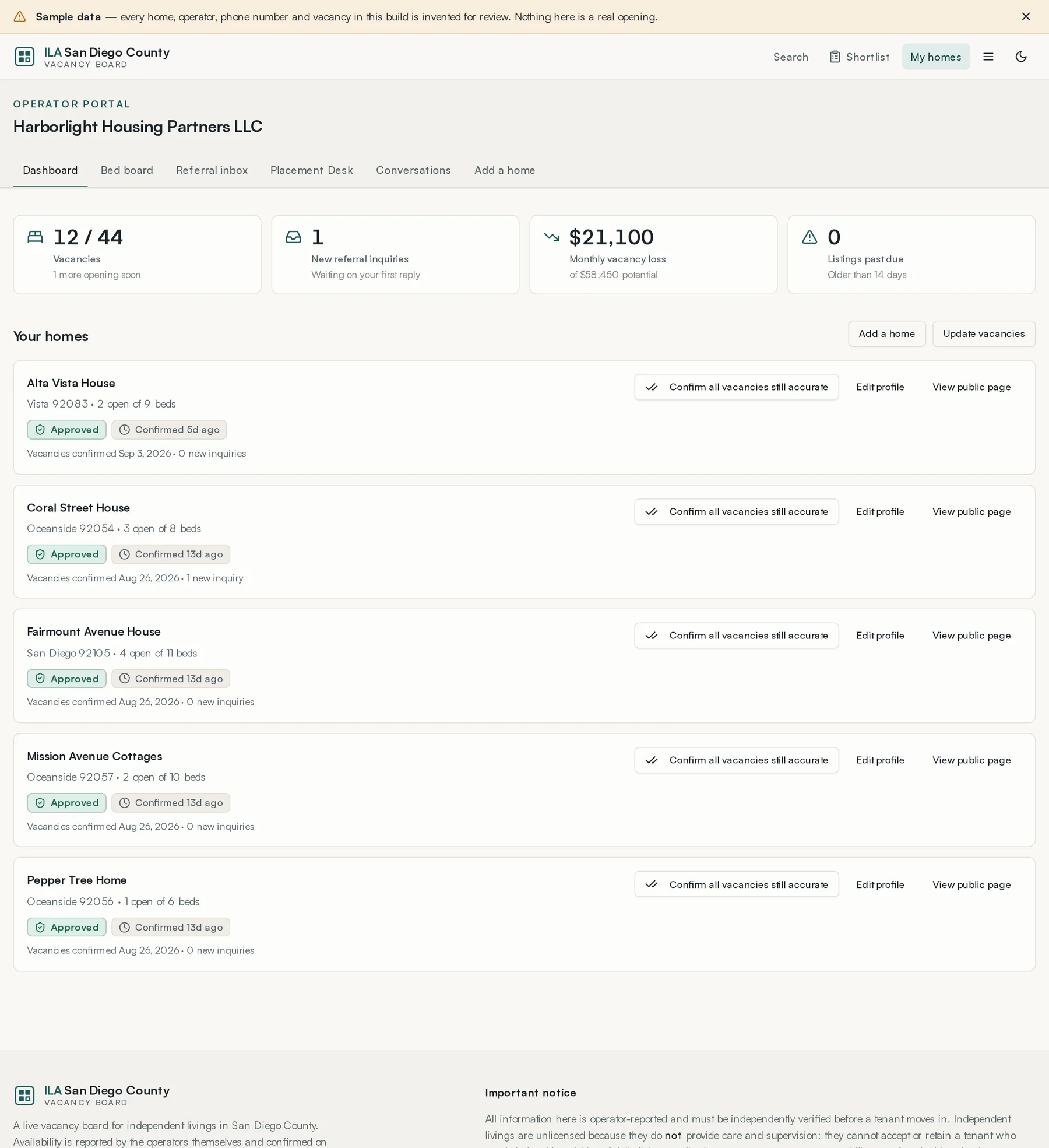

- Dashboard
- Every home you run at a glance, with its open beds, its monthly vacancy loss, and how fresh its information is. Each home can be confirmed from here without opening anything.
- Bed board
- Every bed in every home you run. This is where you spend your time.
- Referral inbox
- People who contacted you through a listing.
- Placement Desk
- Referral requests from verified coordinators that match one of your homes.
- Conversations
- Threads with coordinators who accepted one of your offers.
- Add a home
- A new listing, which goes to the ILA for approval.
Lesson 2 · about 8 min
Adding a home
Get a new listing in front of the ILA for approval.
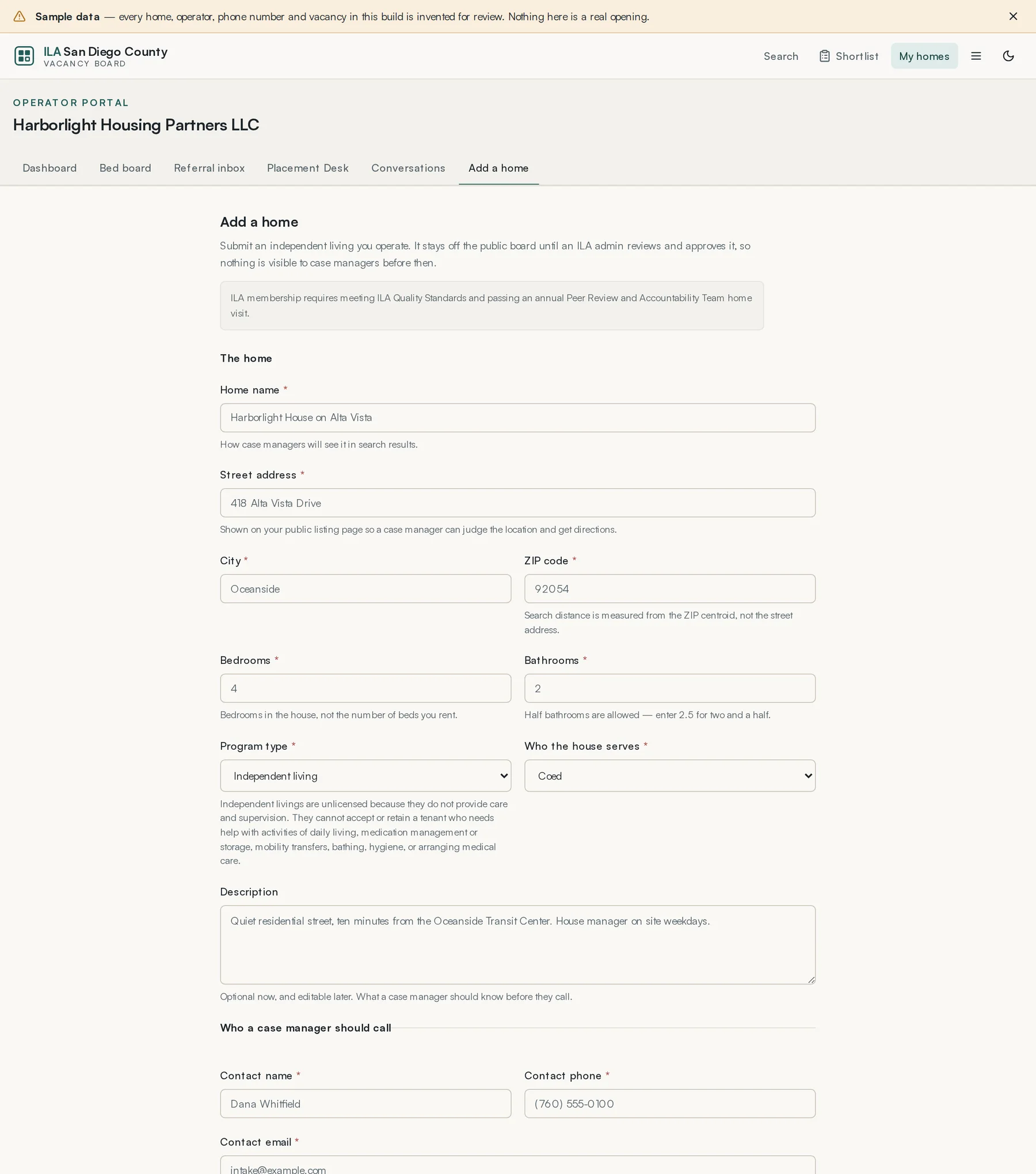
- Open Add a home.
- Name the home the way a case manager would recognise it in a list of search results.
- Enter the street address, city and ZIP. The ZIP is what distance searching uses.
- Give bedrooms and bathrooms — bedrooms in the house, not the number of beds you rent. Half bathrooms are allowed; enter 2.5 for two and a half.
- Choose the kind of home and who the house serves.
- Write a description. This is optional now and editable later, but it is the part a case manager reads before they ring you.
- Give the contact name, telephone number and email a case manager should use.
- Tick the house policies that are true. Do not tick the ones you wish were true.
- Submit. The listing goes to the ILA queue and is not public until someone approves it.
Once the ILA approves it, the home appears in public search and you can add beds to it.
Lesson 3 · about 8 min
The bed board
Keep your vacancies accurate — the one job this board asks of you.
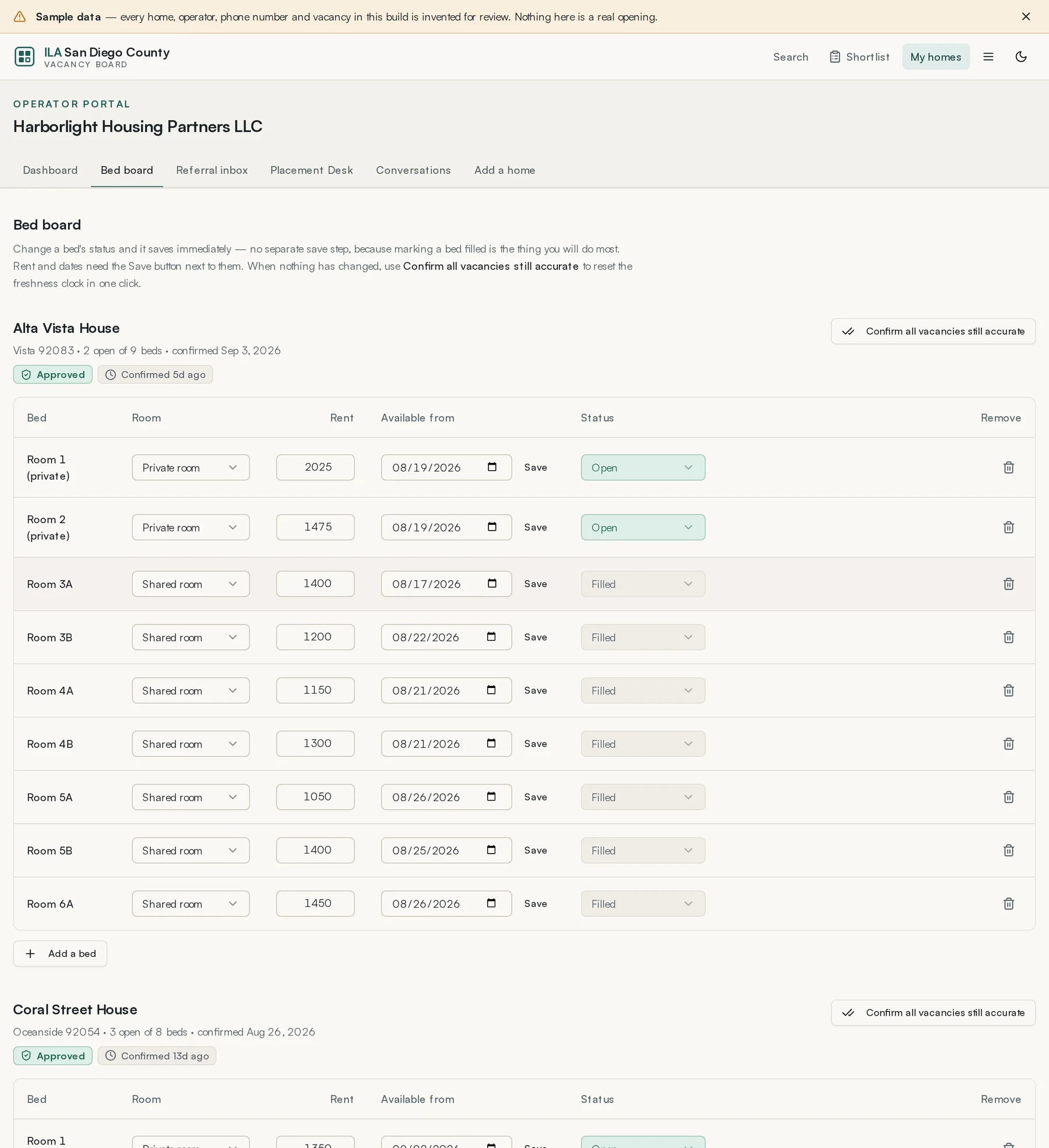
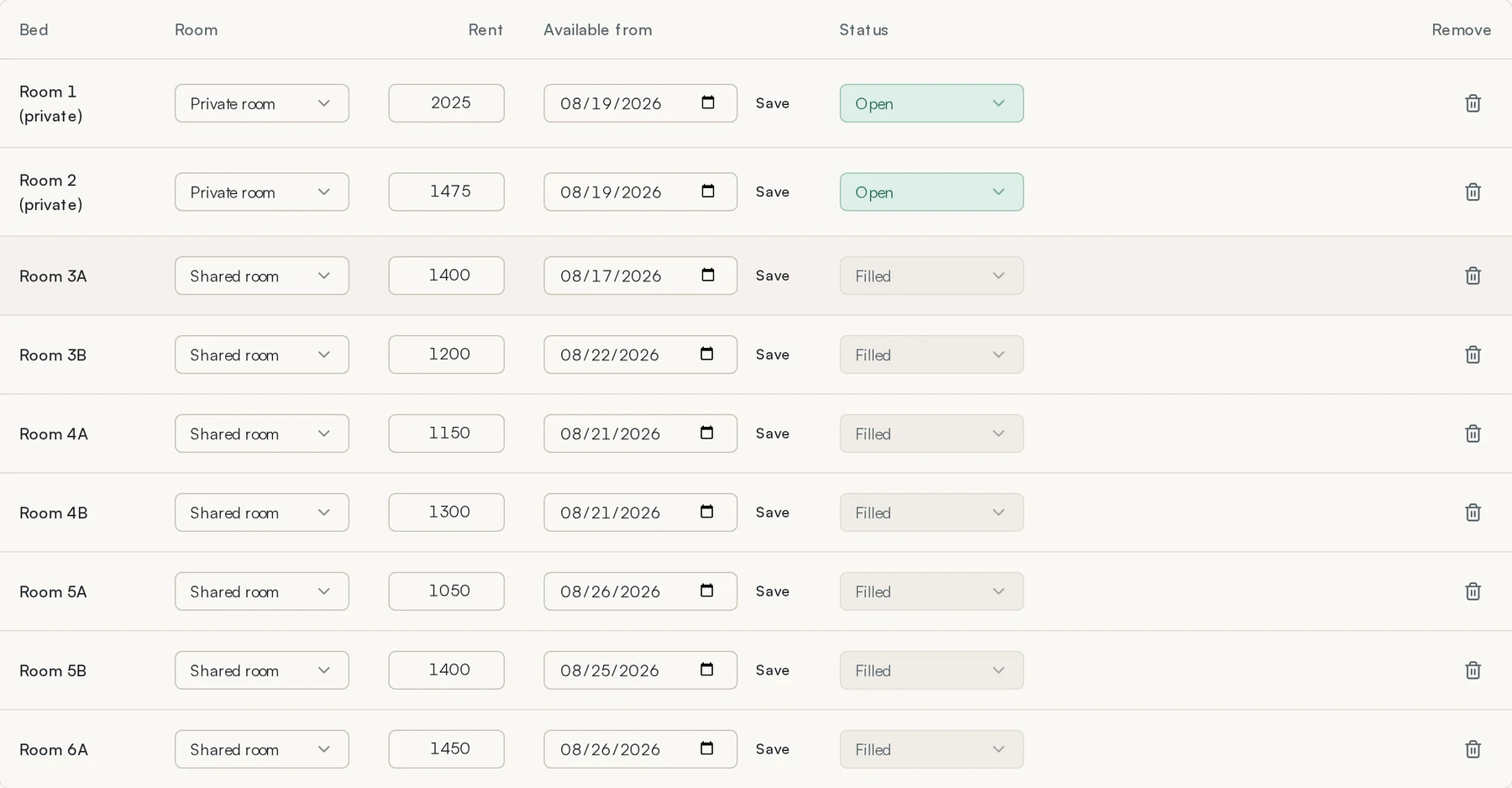
Every bed has a status. Four of them:
- Open
- Vacant and appears in public search as a vacancy.
- Filled
- Someone is living in it. Not shown as available.
- Hold
- Spoken for but not moved in. Not shown as available. Use this the moment you agree to hold a bed for a coordinator, so nobody else rings about it.
- Offline
- Out of service — repairs, an inspection, a room you are not renting this month. Not shown, and not counted against you.
- Set the room type — private or shared.
- Set the monthly rate for that bed.
- Set available from if the bed is not free today. A future date is shown to case managers, which is far better than a surprise.
- Change the status as things move.
- Press Confirm all vacancies still accurate when you are done, even if nothing changed.
If you go quiet, the ILA will send you a one-click confirmation email. Pressing the link in it is enough — you do not have to sign in.
Lesson 4 · about 5 min
The referral inbox
Answer the people who found you through a listing.
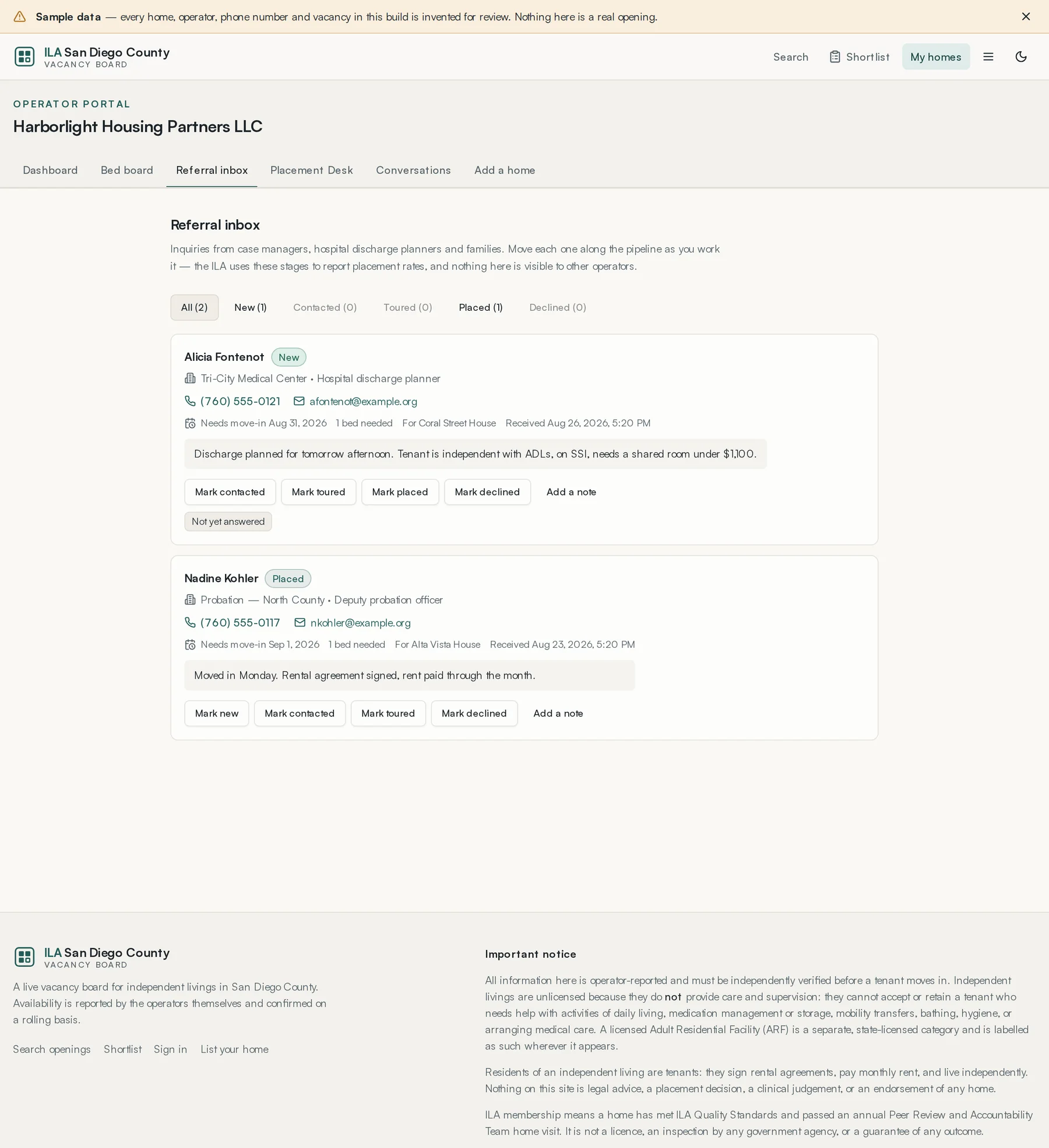
When someone uses the contact form on your listing, it lands here with their name, how to reach them, and what they wrote.
Move each one along as it happens:
- New
- Nobody has answered it yet.
- Contacted
- You have spoken to them.
- Toured
- They have seen the home.
- Placed
- They moved in.
- Declined
- It did not go ahead, from either side.
Lesson 5 · about 7 min
Referral requests from coordinators
Read a request, decide, and offer a specific bed.
A verified coordinator posts what they need. Only operators with a home that matches it can see it. There is no general feed of requests to browse — matching decides what reaches you, and it happens in the database, not in a filter you could widen.
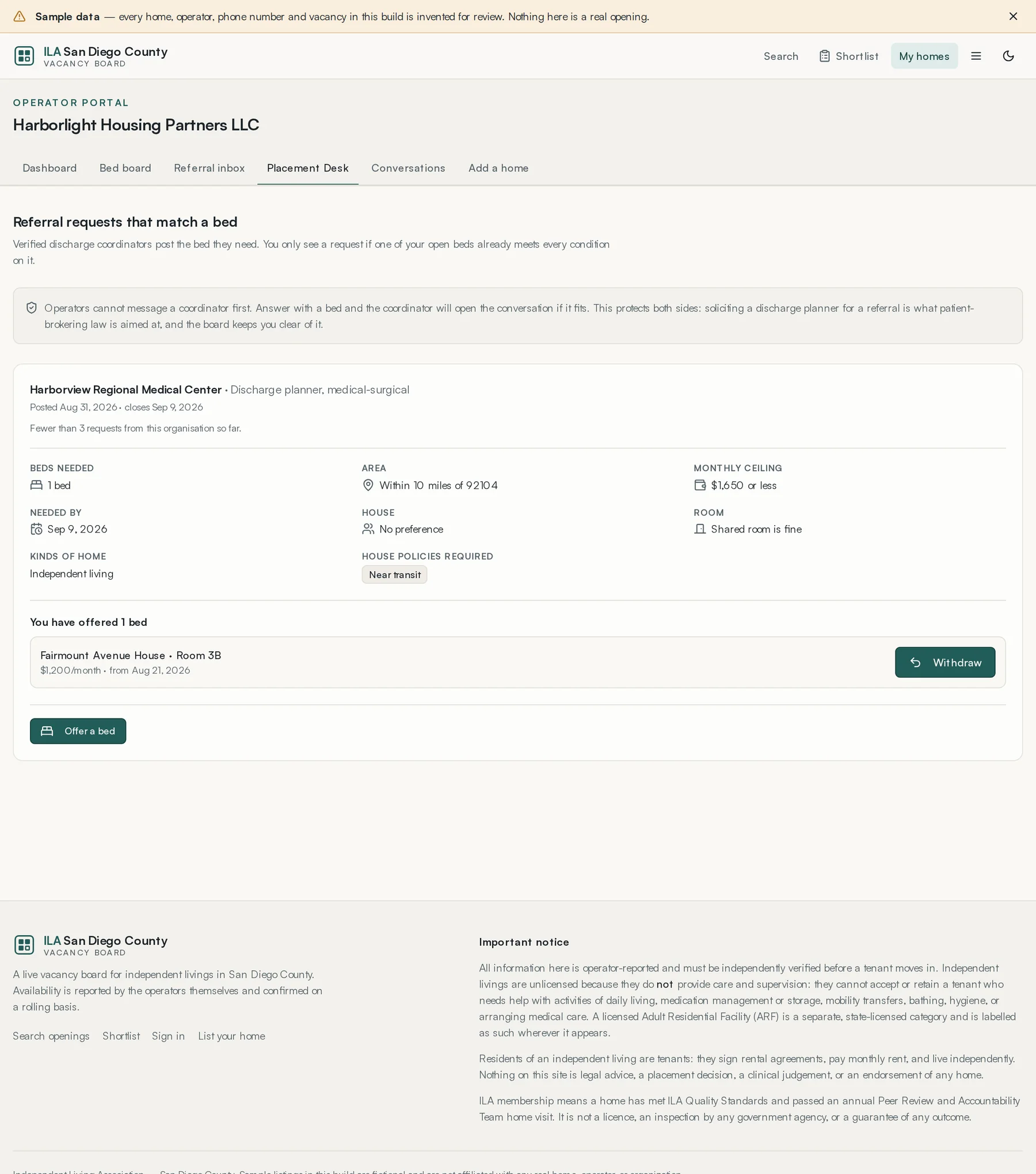
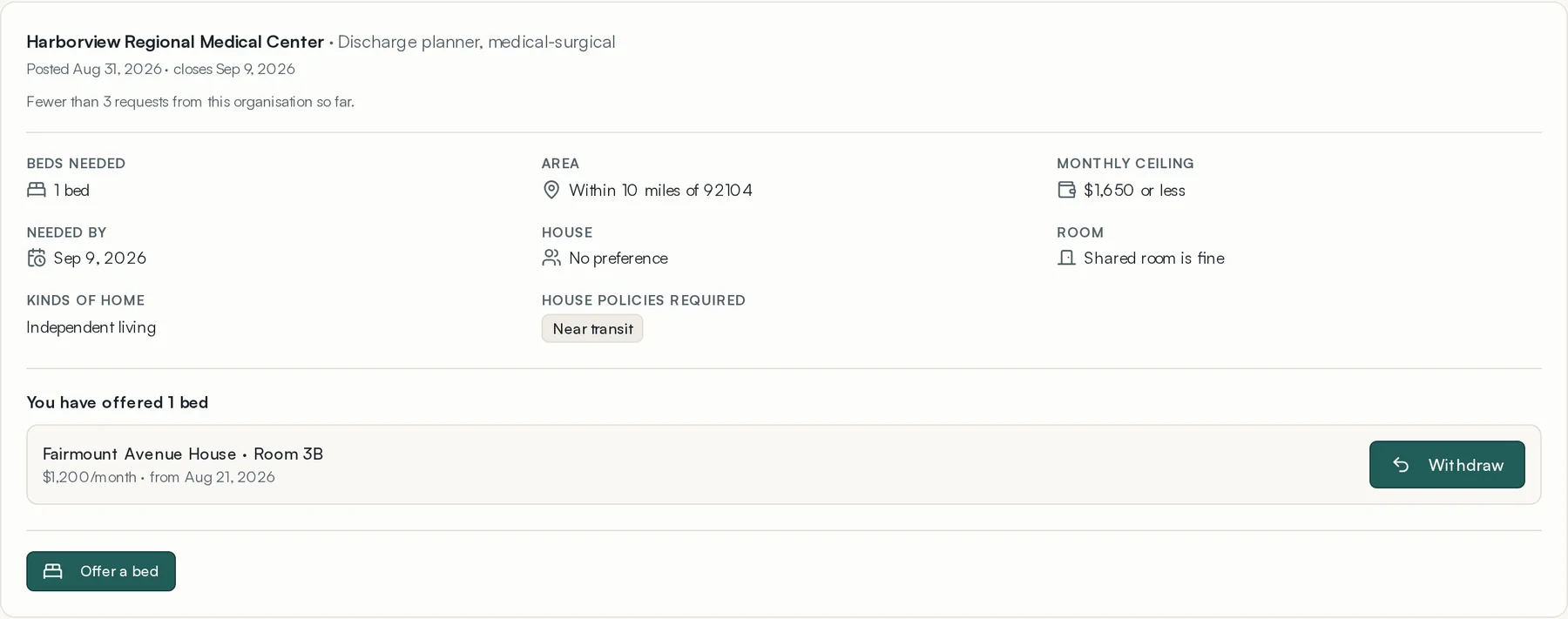
A request tells you the area and radius, the monthly ceiling, how many beds are needed, the date they are needed by, whether it is for men, women or either, whether a shared room is acceptable, the kind of home wanted, and any house policies that are required.
- Read it, including the free-text note.
- If you have something suitable, press Offer a bed.
- Choose the specific bed and state the monthly rate you would charge for it.
- Add a note if there is something the coordinator needs to know.
- Send it.
There is no money on the desk. Nothing is paid to anyone for a referral, in either direction, at any point.
Lesson 6 · about 4 min
Conversations
Talk to a coordinator who chose your offer.
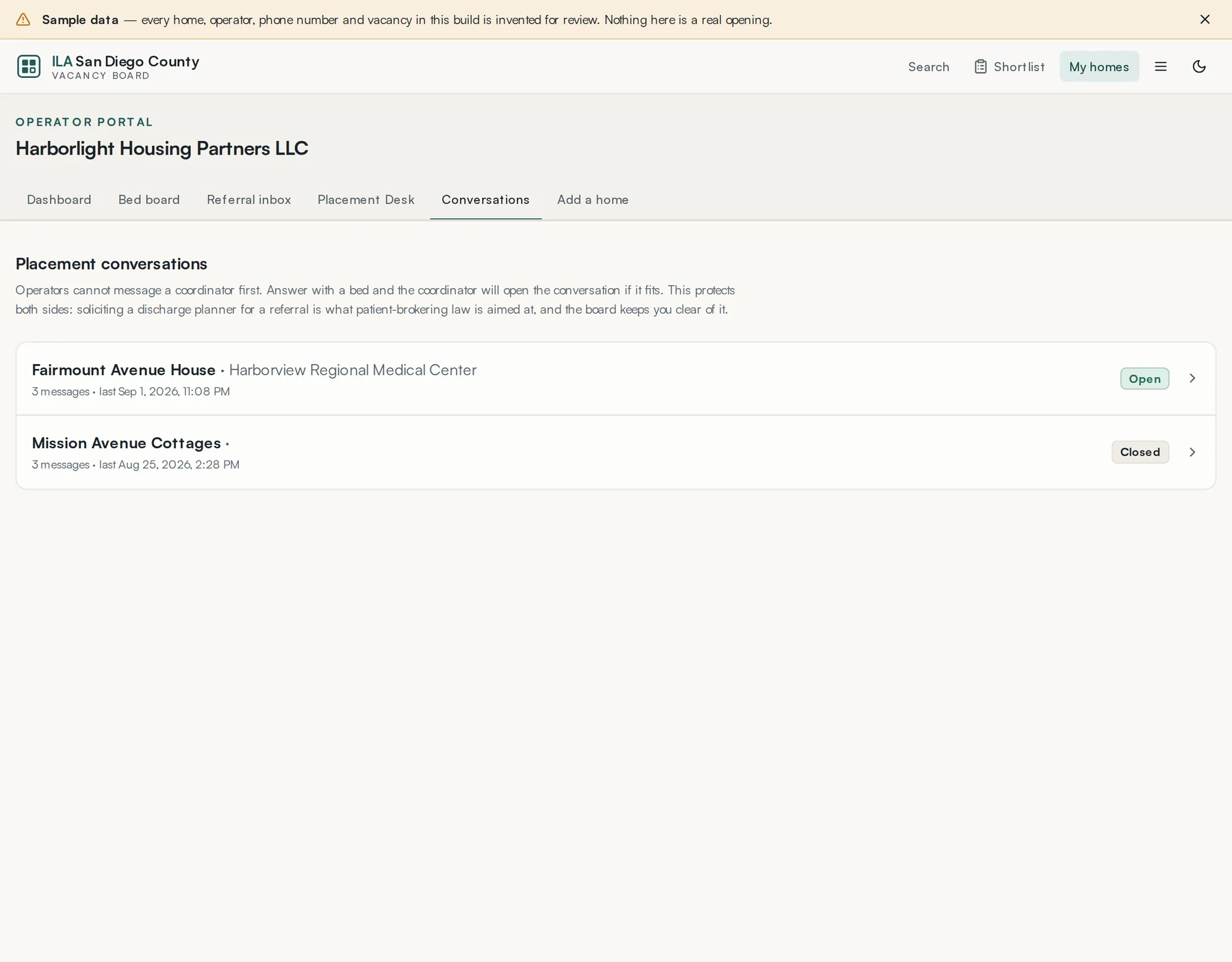
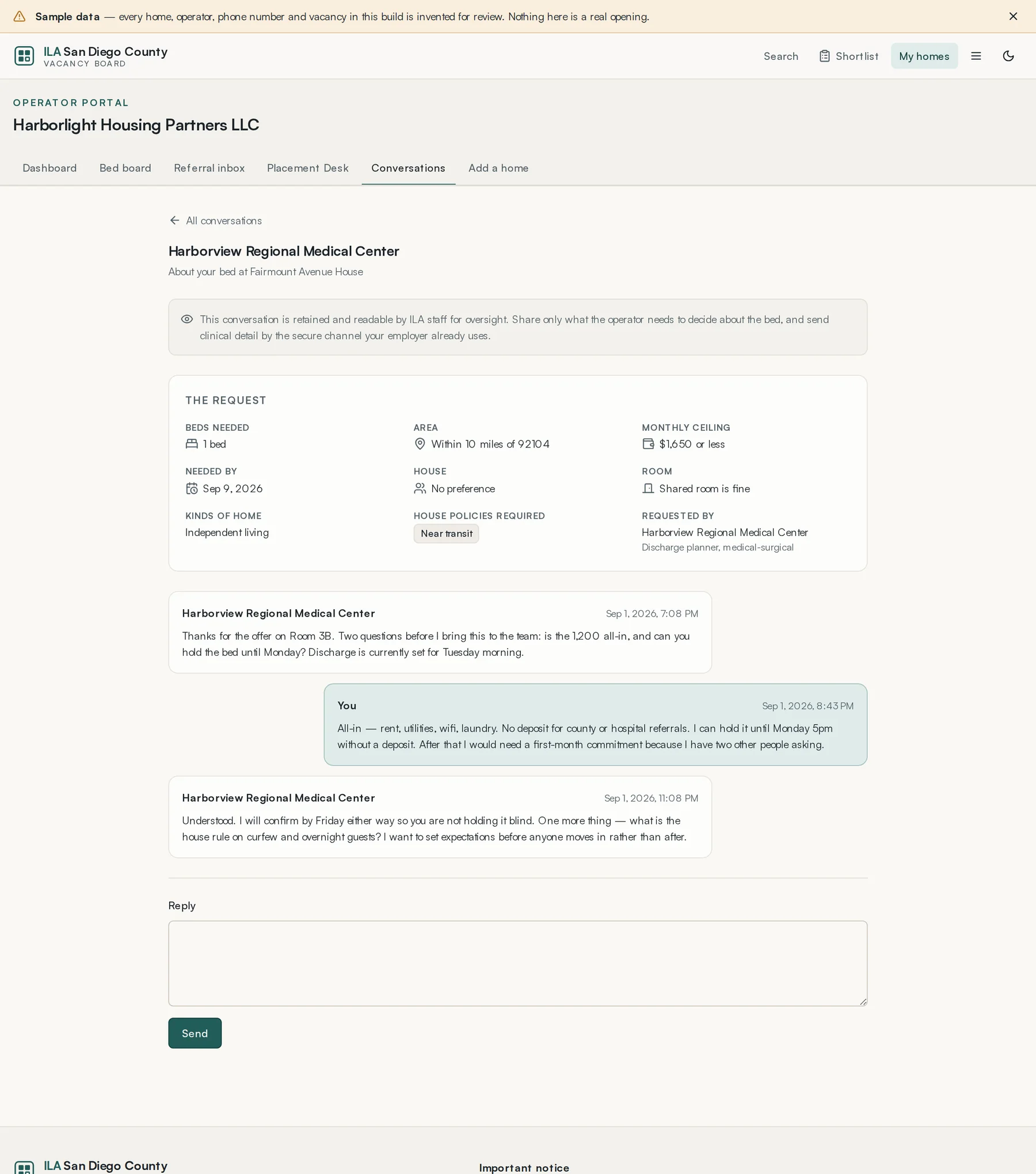
A conversation exists only because a coordinator opened one against a specific request and a specific bed. It closes when they record an outcome.
Messages on a closed conversation are blanked ninety days after it closes. The fact that the conversation happened is kept; its contents are not.
Lesson 7 · about 3 min
Editing a listing
Change what the public sees.
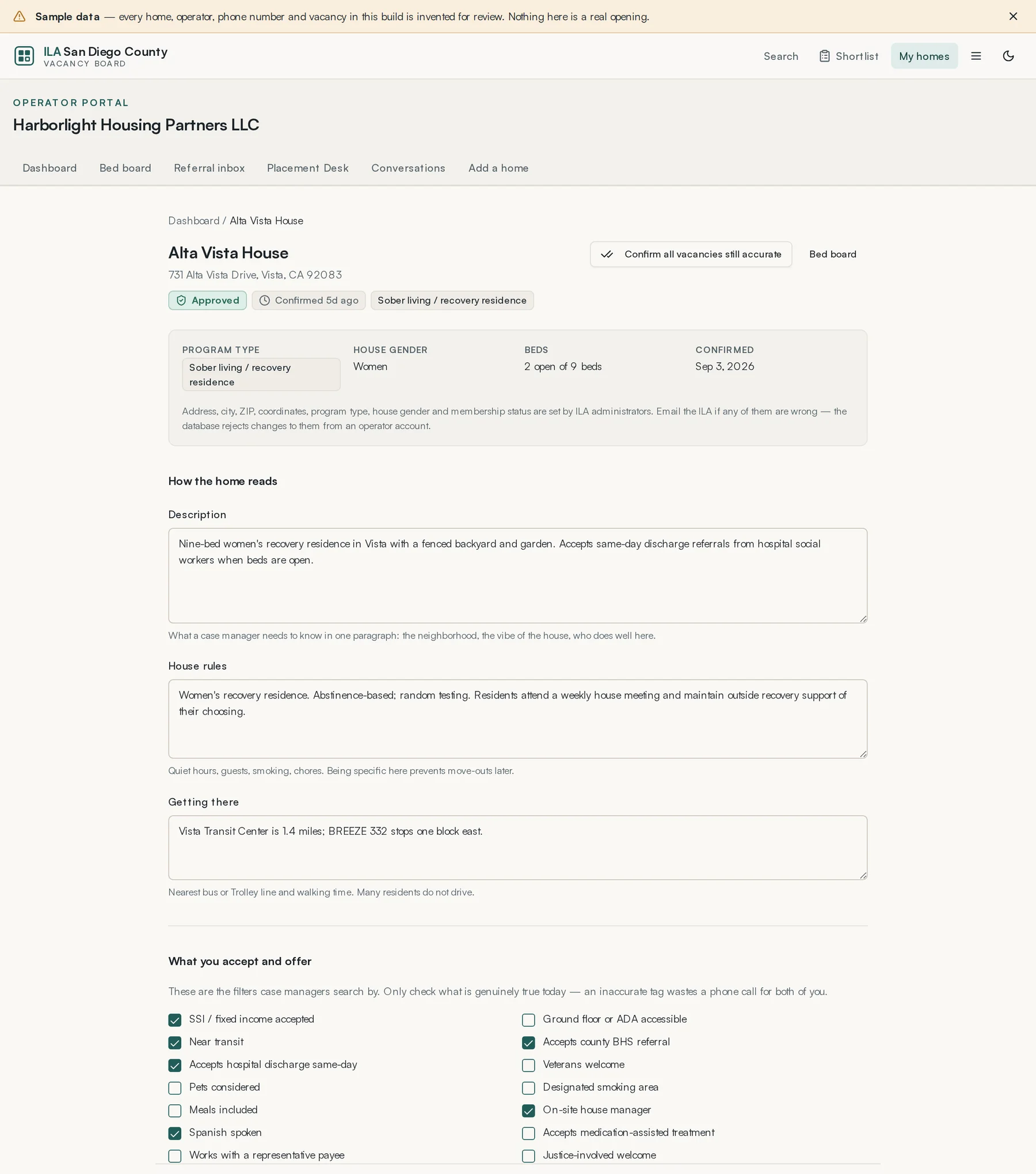
Everything except the beds themselves is edited here: name, address, description, contact, policies, deposit, who the house serves. Changes go live immediately — an edit does not send an approved home back to the queue.